ISS+ | EASY |
|---|---|
Complete | Complete |
Window structure and work areas
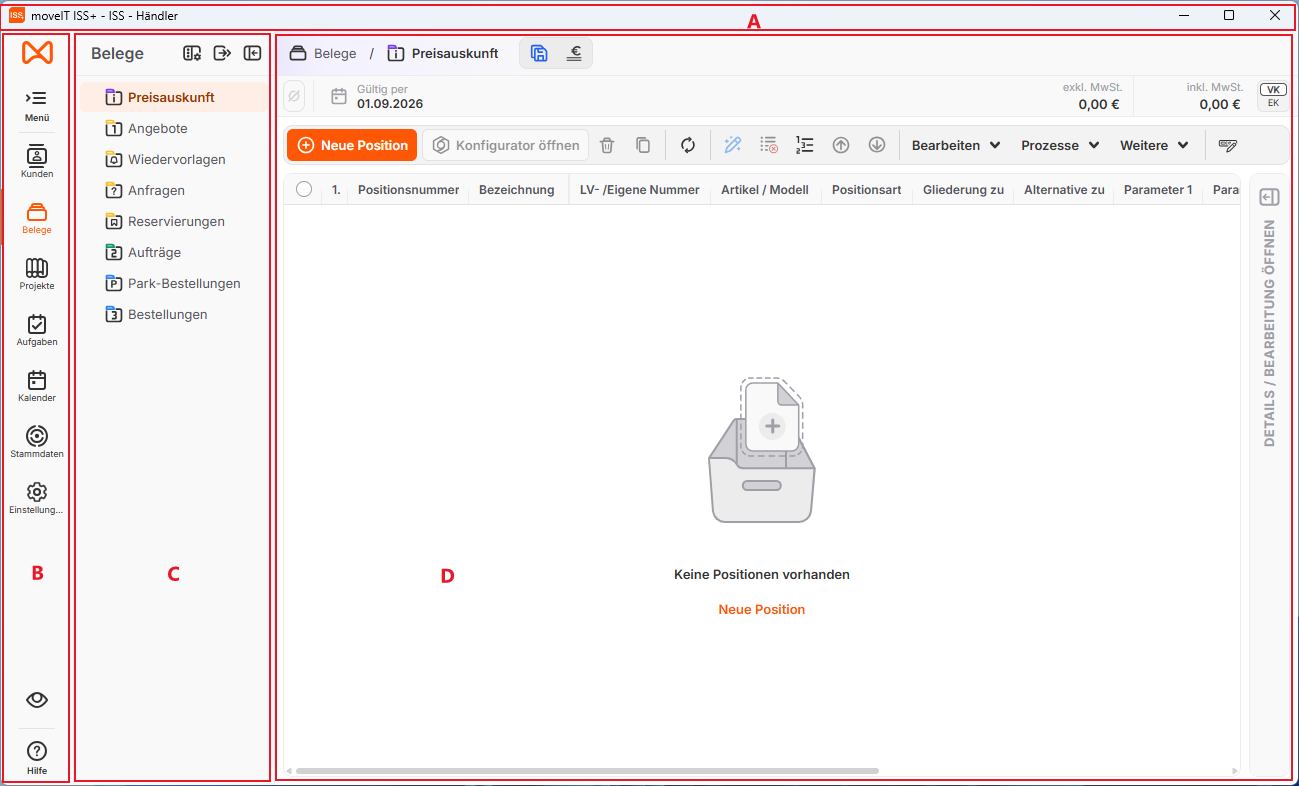
This window has a title bar (A) at the top. In the title bar on the left, the program name, the logged-in user and the type of installation (e.g. ISS – dealer) are displayed.
On the right are Windows' standard window control buttons:
[Minimize] – Hide windows
[Maximize] – Enlarge window to screen size
[Close] – End application
Below the title bar, the interface is divided into four main areas . These areas can be adjusted by so-called "frames" (border lines). By dragging with the mouse button pressed, the width or height of individual areas can be changed.
Area A – Title bar
The title bar is located at the top of the window. It contains:
The program name and installation information (e.g. [moveIT ISS+ – ISS – Dealer])
The logged-in user
The window controls: minimize, maximize, close
Area B – Main Menu Bar
In the left vertical menu (B) there are the main functions of the program in the form of icons with labels:
Menu
Customers
References
Projects
Responsibilities
Calendar
Master data
Settings
Additional options such as
Hide internal data
Help
This area is used to navigate through the main modules of moveIT ISS+. When you click on a menu item (e.g. [Documents]), the corresponding sub-areas are displayed in the adjacent area (C).
Bereich C – Modul-Navigator
Der Modul-Navigator (C) ist ein strukturierter Verzeichnisbaum ähnlich dem Windows Explorer. In diesem Beispiel ist der Menüpunkt [Belege] aktiv, wodurch in diesem Bereich die Unterkategorien wie:
Preisauskunft
Angebote
Aufträge
usw.
aufgelistet werden.
Durch Auswahl eines Eintrags (z. B. [Preisauskunft]) wird dessen Inhalt im Hauptarbeitsbereich (D) geöffnet. Der Navigator erlaubt somit eine feingranulare Auswahl innerhalb eines Moduls.
Bereich D – Hauptarbeitsbereich
Der rechte, zentrale Bereich (D) ist der Hauptarbeitsbereich. Hier werden alle Detaildaten, Formulare und Bearbeitungsfunktionen des gewählten Navigatoreintrags angezeigt.
Im Beispiel zeigt der Arbeitsbereich die Oberfläche der Preisauskunft, in der Positionen zu Preisabfragen erstellt oder verwaltet werden können.
Funktionen wie:
[Neue Position] anlegen
Positionen bearbeiten oder löschen
Anzeigeoptionen oder Prozesse starten
werden hier angeboten. In der Tabelle darunter erscheinen alle vorhandenen Positionen – aktuell ist noch keine Position angelegt.
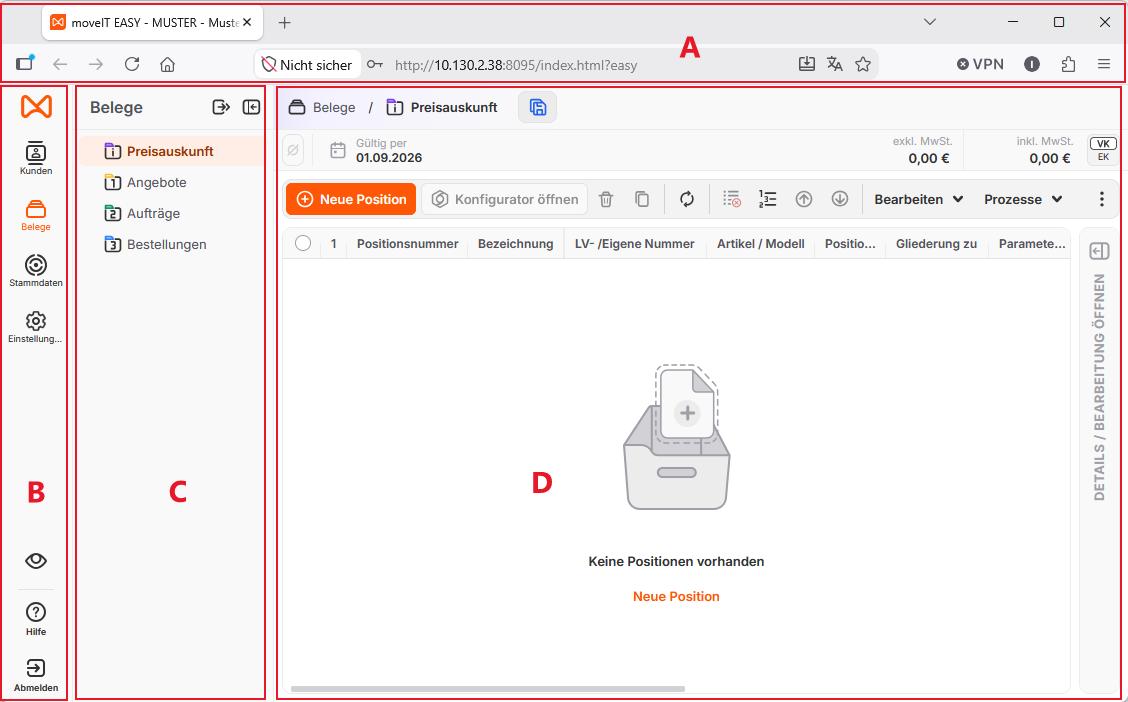
moveIT EASY runs in the browser and is usually displayed with the standard browser interface, which looks slightly different depending on the browser. The moveIT EASY application is visible in a browser tab that displays a title and a so-called favicon.
In the browser's URL bar, the URL provided by the operator or industry must be entered to access the application. Depending on the browser used, the appearance of the interface above the EASY application may vary, as each browser displays its own controls and navigation bars.
Example URL: https://easy.meineindustrie.com/easy/index.html?easy
The user interface is divided into four main areas, which are separated from each other by so-called "frames". These can be adjusted in size by dragging the frame with the mouse button pressed.
Area A – Title bar (browser line)
The title bar shows the current URL where the application is loaded. It contains:
The address of the web application
Browser controls , such as icons and buttons, may be displayed differently depending on the web browser you are using
Area B – Main Menu Bar
In the left vertical menu (B), the main modules of the application are labeled icons:
References
Addresses
Master data
Settings
These also include:
Hide internal data
Help
Log out
This area is used to navigate through the core functions of moveIT Easy. When clicking on a module (e.g. [Documents]), the corresponding navigator (C) is displayed.
Bereich C – Modul-Navigator
Der Modul-Navigator (C) ist ein strukturierter Verzeichnisbaum ähnlich dem Windows Explorer. In diesem Beispiel ist der Menüpunkt [Belege] aktiv, wodurch in diesem Bereich die Unterkategorien wie:
Preisauskunft
Angebote
Aufträge
usw.
aufgelistet werden.
Durch Auswahl eines Eintrags (z. B. [Preisauskunft]) wird dessen Inhalt im Hauptarbeitsbereich (D) geöffnet. Der Navigator erlaubt somit eine feingranulare Auswahl innerhalb eines Moduls.
Bereich D – Hauptarbeitsbereich
Der rechte, zentrale Bereich (D) ist der Hauptarbeitsbereich. Hier werden alle Detaildaten, Formulare und Bearbeitungsfunktionen des gewählten Navigatoreintrags angezeigt.
Im Beispiel zeigt der Arbeitsbereich die Oberfläche der Preisauskunft, in der Positionen zu Preisabfragen erstellt oder verwaltet werden können.
Funktionen wie:
[Neue Position] anlegen
Positionen bearbeiten oder löschen
Anzeigeoptionen oder Prozesse starten
werden hier angeboten. In der Tabelle darunter erscheinen alle vorhandenen Positionen – aktuell ist noch keine Position angelegt.
Note on operation
Changing Area Sizes: The width of areas B and C and the height of work area D can be individually adjusted by dragging along the frame lines.
This structure remains largely the same in all modules, which guarantees uniform operating logic throughout the software.