The Adjust Exchange Rate function allows you to manually change the exchange rate used in the document. This is particularly useful if the automatically stored exchange rate is not to be used or the exchange rate has changed since the receipt was created.
By adjusting the exchange rate, the sales and purchase prices of the document can be recalculated based on the new exchange rate. This ensures that prices are in line with current exchange rates.
The function is often used for documents that were created in a currency other than the system currency . After the change in the exchange rate, the affected price values will be updated accordingly.
Only for experienced users
This feature should only be used by experienced users . Only the expressly required settings may be adjusted.
Other settings should not be changed, as this can lead to incorrect calculations or undesirable effects on the document.
Call function
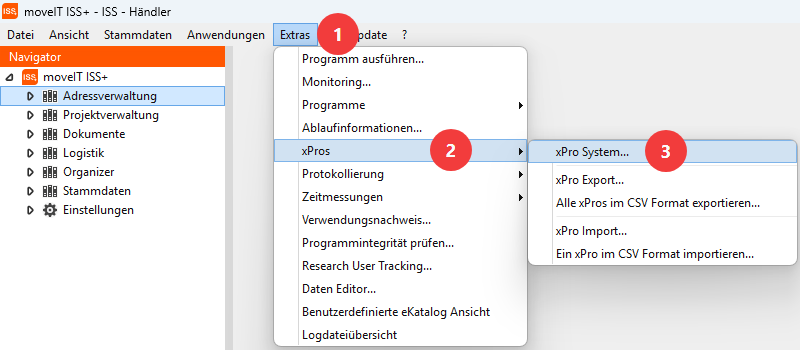
To call the function, navigate via [Extras]→[xPro]→[xPro System...]. The xPro settings then open, where the desired adjustments can be made.
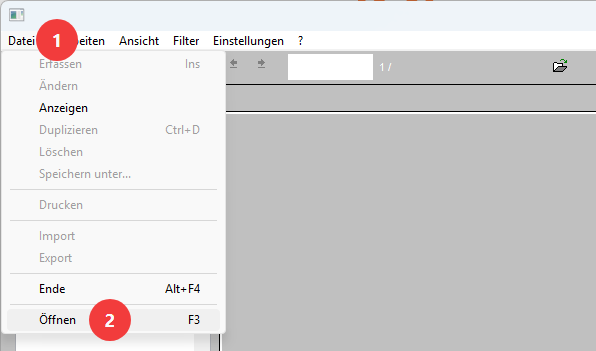
In the xPro settings, the search function is called up via [File]→[Open].
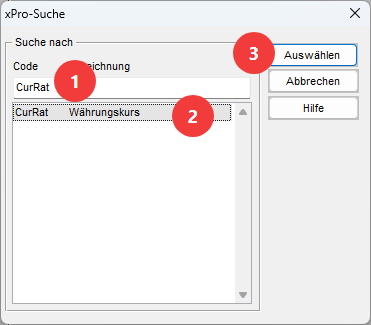
The xPro search then searches for the code "CurRat". The corresponding entry is selected and opened via [Select].
Now the desired currency entry is selected and copied using the [Duplicate] function in the menu. This preserves the original record unchanged.
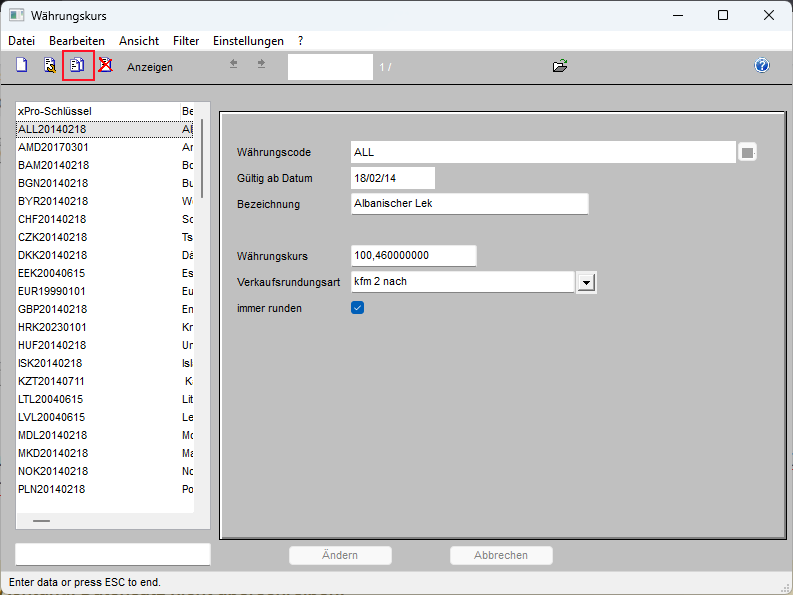
Attention! Do not overwrite the data record!
Existing values must not be overwritten. It is always necessary to use the [Duplicate] function first and then enter the new exchange rate in the duplicated data record.
Info on the exchange rate
The value in the "Currency rate" field always refers to 1.00 euros.
In the example shown, this means:
1.00 € = 100.46 ALL
The displayed exchange rate corresponds to the exchange rate stored at the respective time.
After duplicating the record, the required fields must be adjusted:
Valid from date: Enter the date from which the new currency rate is to be used for newly created documents.
Currency rate: This field is used to enter the previously calculated or desired exchange rate .
Sales rounding type: This field is not automatically applied when duplicating, so you need to select it again.
[Always round]: If rounding is to be used in the price calculation, the [Always rounding] option is activated.
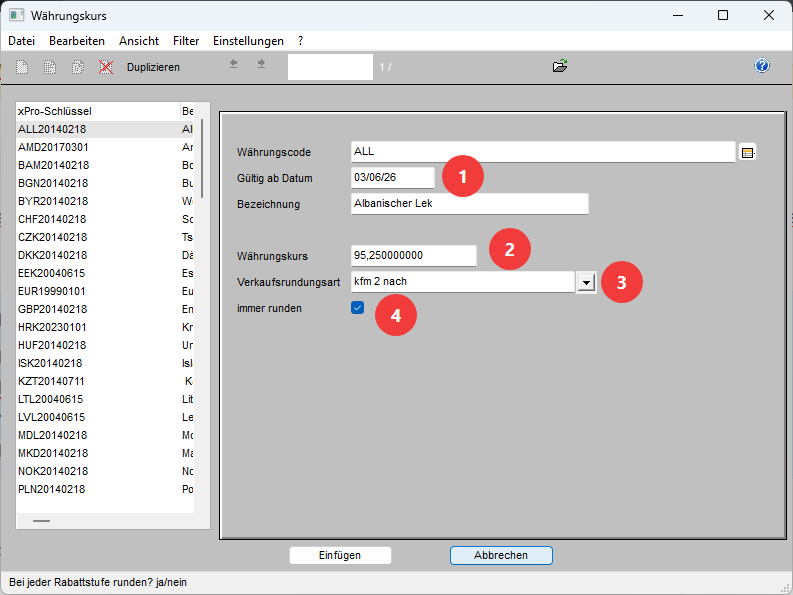
The changes made are saved via the [Insert] function and created as a new currency rate record . The original data set remains unchanged.